Quote Ordering
Place a quote order on the Labviva Purchasing Platform.
A quote order is placed when you and/or your organization and a supplier have agreed to a predetermined price for a specific product or multiple products. You can place quote orders on your Purchasing Platform using a 3-step form.
To place a quote order:
1. Click Quote Orders in the top navigation.

This will bring you to the Quote Order form.
2. Search for and select the supplier you received your quote from using the supplier search functionality. If the supplier has multiple locations, use the provided supplier addresses to select the correct location.
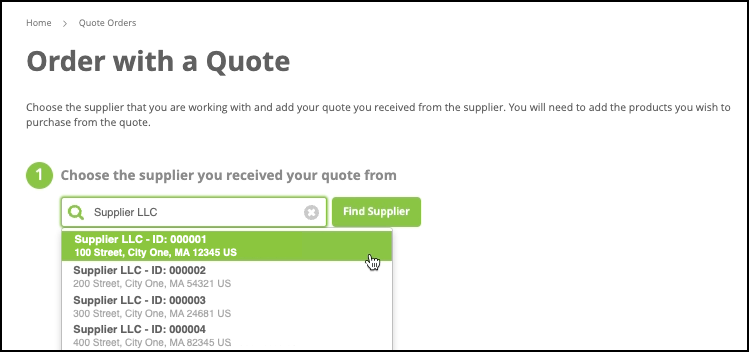
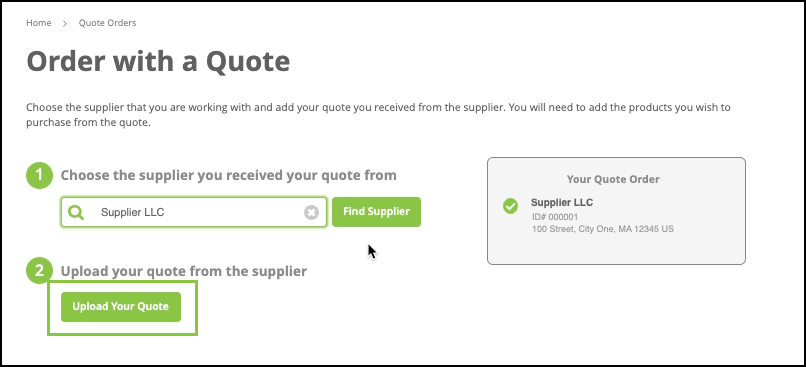
Your selected supplier and location are now listed under Your Quote Order details.
3. Click Upload Your Quote.
4. To upload your quote, use the drag-and-drop option or click on Browse to open your computer folder options to select the correct file.
Note: Accepted file types for upload include: Doc, PDF, or Image.
When your quote order file is successfully uploaded, the file name will be added to Your Quote Order details.
5. Enter the SKU, Name (optional), Price, and Quantity for each item in your quote order and click Enter on your keyboard.

The Labviva platform will automatically search your suppliers’ catalogs for a matching SKU. If a catalog item with that SKU contains a less expensive buying option, you’ll be notified by a Price Alert window.
A Price Alert gives you the option to purchase a catalog item for a lower price or continue placing your quote order.

6. Click Add to Cart to add the lower-priced catalog item to your Cart. This item will be added directly to your Cart.
Or
Click Return to Quote or the X in the top right corner of the Price Alert window to continue using the price in your quote order.
7. Click Add Item if your quote order includes multiple products and enter the SKU, Name (optional), Price, and Quantity for each item.
8. When all quote order items have been added, click Add to Cart.

9. Your quote order will be added to your Cart and you’ll be brought to your Cart Page.
Here, you can view your quote order and any other products you may have added for purchase. Quote order products will not include product images on the Cart Page.

10. Click Proceed to Checkout to submit your quote order.
Note: A copy of your quote will transfer to your procurement system for processing and approval, if applicable.
Or
Continue shopping on your Purchasing Platform.