Quick Order
Add multiple items to your Purchasing Platform cart at one time with Quick Order.
Quick Order is used to add multiple items with known Manufacturer SKUs or Supplier IDs to your cart efficiently and easily by using a Quick Order file upload or through manual entry. This feature harnesses Labviva’s buying option transparency by providing you with a user-friendly interface to select your preferred product offer for each item and enables you to add multiple items to your cart at once.
Important Note: If you navigate away from the Quick Order Page before adding products to your cart, all information will be cleared and your changes/uploads will not be saved.
To add items to your cart using Quick Order on the Labviva Purchasing Platform:
1. Click Quick Order in the top navigation.

This will bring you to the Quick Order Page.
There are two ways to add items: the Add a Product search bar or the Quick Order File Upload.
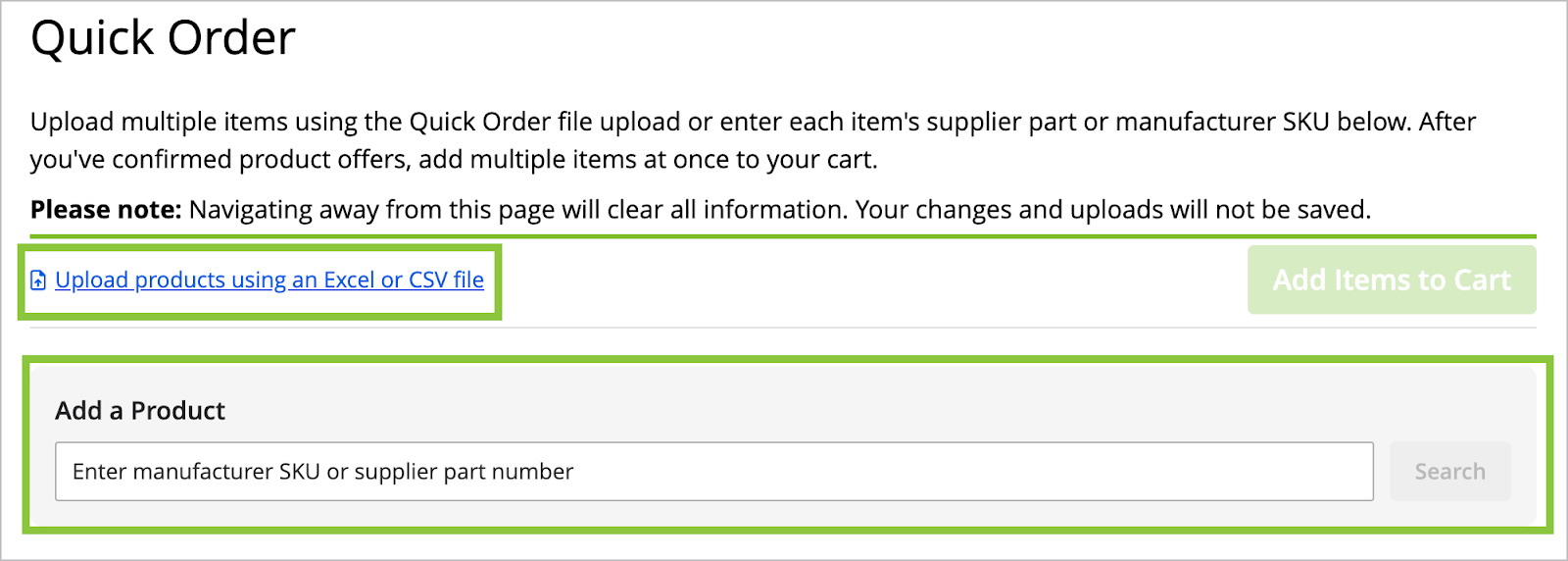
2. Add a product using the Add a Product search bar:

-
Enter the manufacturer SKU or Supplier Part Number and click Search.
-
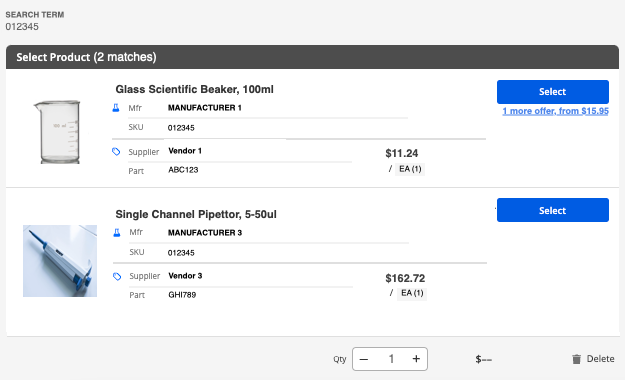
If multiple product matches are available, click Select to choose your preference.
Enter the manufacturer SKU or Supplier Part Number and click Search.
If multiple product matches are available, click Select to choose your preference.
-
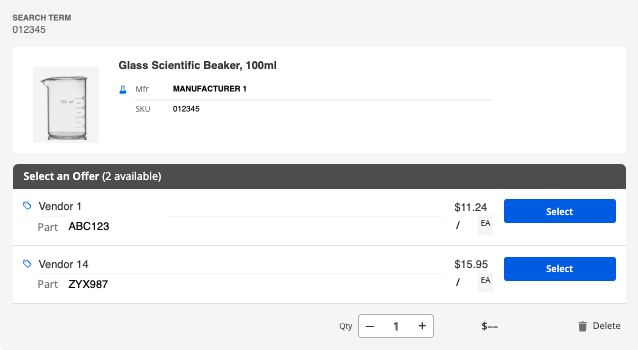
If multiple offers are available, the lowest-priced offer will automatically be displayed. Click # more offer from $ to view and select your preferred offer.
If multiple offers are available, the lowest-priced offer will automatically be displayed. Click # more offer from $ to view and select your preferred offer.
-
If needed and available, you may Change Product, Change Offer, update the Quantity of the product, or Delete the product.
-
Continue this process until you’ve successfully added each item to your Quick Order.
If needed and available, you may Change Product, Change Offer, update the Quantity of the product, or Delete the product.
Continue this process until you’ve successfully added each item to your Quick Order.
3. Add products using the Quick Order File Upload:
-
Click Upload products using an Excel or CSV file.
-
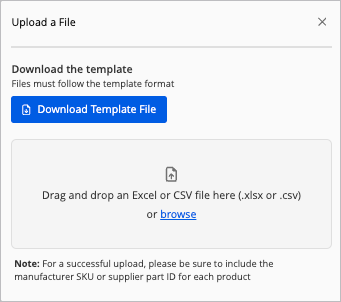
Click Download Template File for the required file format and enter the Manufacturer SKU or Supplier Part ID for each product you’d like to add to the Quick Order.
Or
Drag and drop or Browse your computer for your Quick Order file. For a successful upload, please use the required format and include the Manufacturer SKU or Supplier Part ID for each item.
Click Upload products using an Excel or CSV file.
Click Download Template File for the required file format and enter the Manufacturer SKU or Supplier Part ID for each product you’d like to add to the Quick Order.

Or
Drag and drop or Browse your computer for your Quick Order file. For a successful upload, please use the required format and include the Manufacturer SKU or Supplier Part ID for each item.
Note: Quantity, Unit of Measure, and Description are optional for each product in the Quick Order file; however, this information can provide helpful context when reviewing your upload on the Quick Order Page.
-
When the file has been successfully uploaded, your results will display on the Quick Order Page.
The file name will be visible in the top left of the results list. Each successfully uploaded product will also include the Row and SKU/Supplier ID. Unit of Measure, Quantity, and Description will also display any uploaded information.
When the file has been successfully uploaded, your results will display on the Quick Order Page.
The file name will be visible in the top left of the results list. Each successfully uploaded product will also include the Row and SKU/Supplier ID. Unit of Measure, Quantity, and Description will also display any uploaded information.

-
If a product has multiple products available, a red NEEDS ATTENTION notification will prompt you to select your preference.
If a product has multiple products available, a red NEEDS ATTENTION notification will prompt you to select your preference.
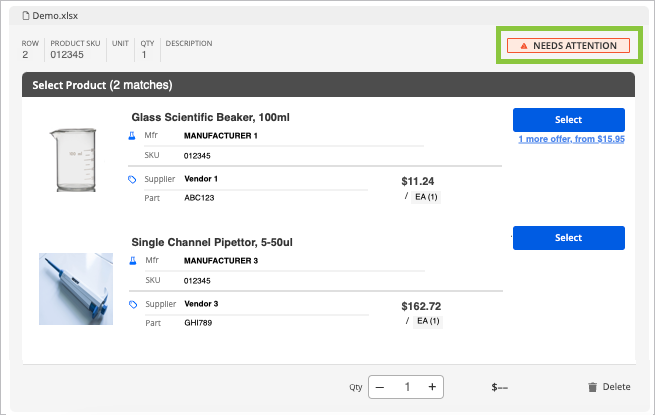
Note: Any products with a NEEDS ATTENTION notification cannot be added to your cart until a preferred product is selected.
-
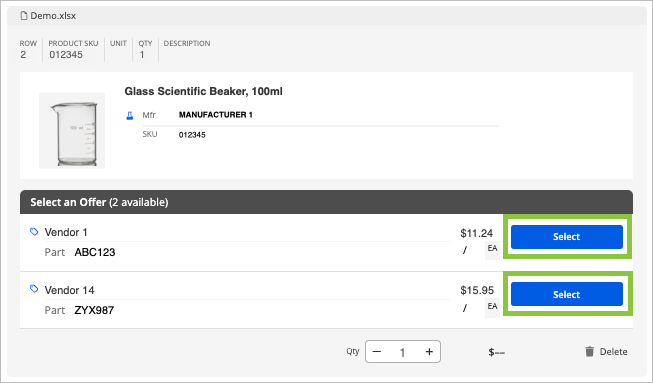
If a product has multiple available offers, the lowest-priced offer will automatically be selected. To change your preferred offer, click Change Offer and Select your preferred offer.
If a product has multiple available offers, the lowest-priced offer will automatically be selected. To change your preferred offer, click Change Offer and Select your preferred offer.
-
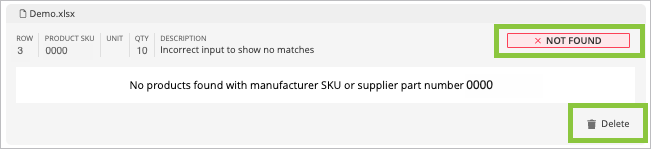
If a product cannot be found, you’ll be notified by a NOT FOUND notification. You may then click Delete to remove this from your Quick Order.
If a product cannot be found, you’ll be notified by a NOT FOUND notification. You may then click Delete to remove this from your Quick Order.
4. Review your Quick Order list to confirm your selected product(s), offer(s), and quantity(ies).
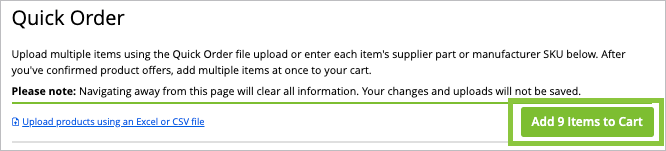
5. Click Add Items to Cart to add all applicable products to your cart.
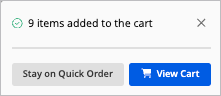
6. You’ll then be prompted to Stay on Quick Order or View Cart, which will bring you to the Cart Page.
When ready, you may then review and place your order on the Cart Page.